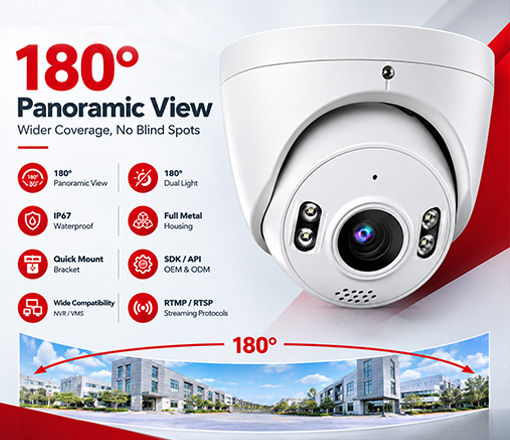
How to Add a Security Camera to VideoLink App
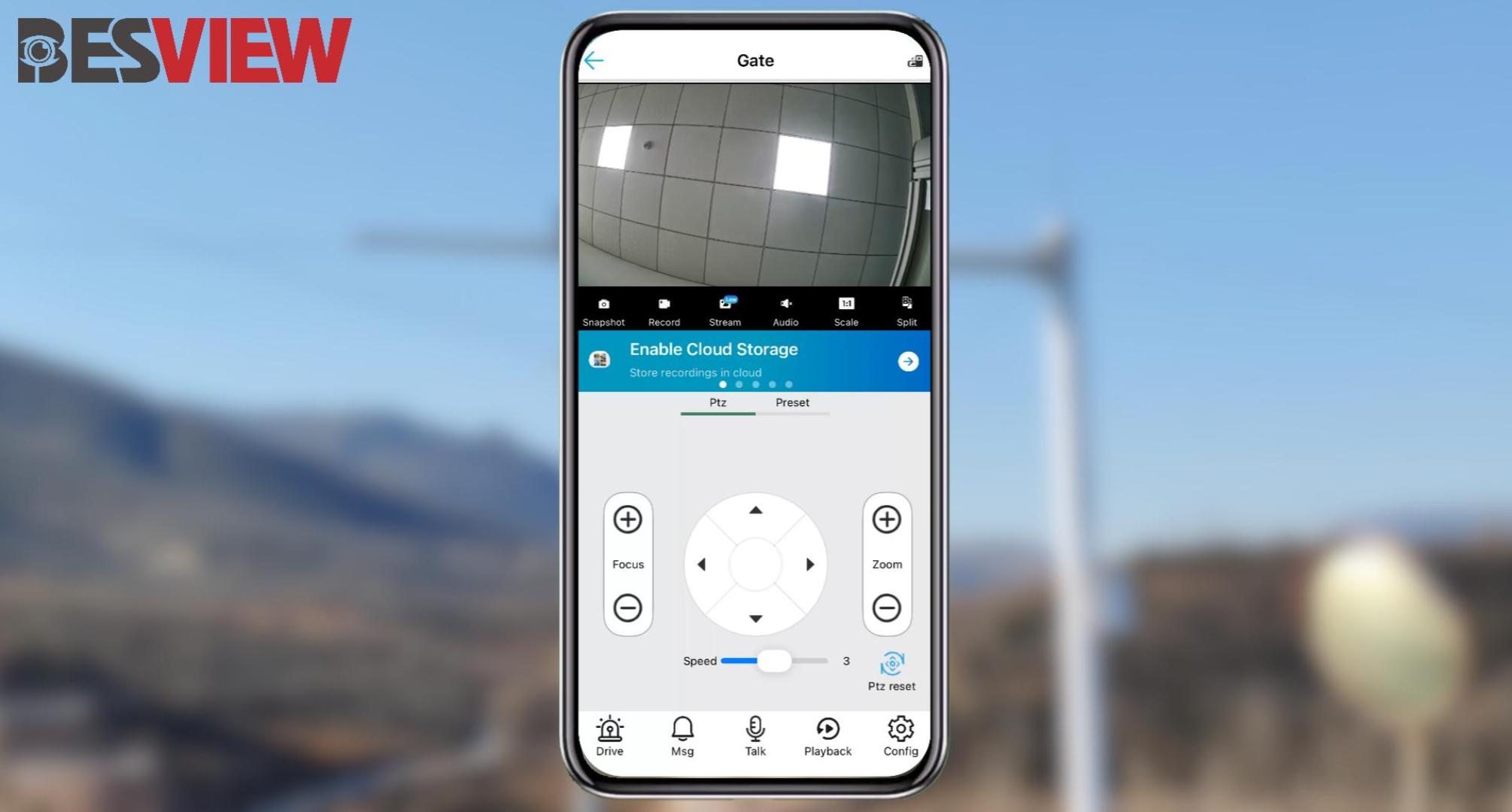
Learn how to add a BESVIEW security camera to the VideoLink App with this simple and practical tutorial.
How to Add a Security Camera to VideoLink App
The VideoLink App allows users to connect and manage compatible security cameras from a mobile device. If you are using a BESVIEW camera, follow the basic steps below to complete the setup.
1. Open the VideoLink App
Download and open the VideoLink App on your mobile device, then log in to your account.
2. Add the Camera
Select Add Device or the corresponding add-device option in the app. Follow the instructions shown on the screen to start adding your security camera.
3. Enter the Device Information
Enter or scan the required device information according to the instructions in the app. Make sure the camera is connected properly before continuing.
4. Complete the Setup
Follow the remaining instructions to finish adding the camera. Once successfully connected, the camera will appear in your device list.
5. View the Camera
Select the added camera to check the live video and confirm that the connection is working properly.
Video Tutorial
For a visual guide, watch the BESVIEW tutorial:
How to Add a Security Camera on VideoLink App – Simple Practical Tutorial
If you need help with compatible security cameras or other technical questions, contact the BESVIEW team.


 LinkedIn
180-Degree Panoramic IP Cameras: Benefits and Buying Guide
8MP 180° Panoramic Dual-Light IP Camera | BC-IE30KDW-8ME